
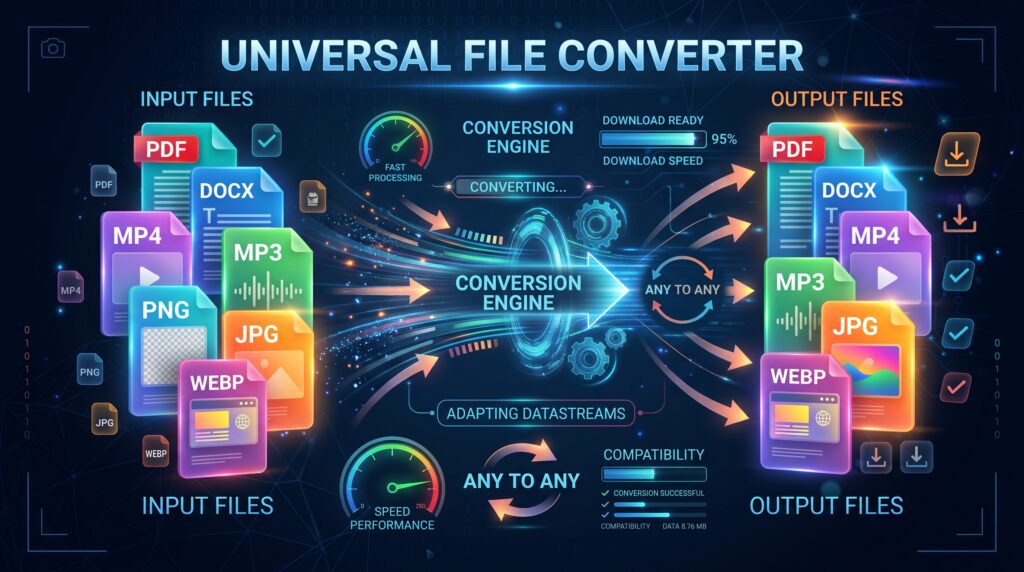
Whether you need to turn a smartphone video into an audio clip, convert a modern raster image to a vector shape, or export a formatted document into a read-only PDF, file converters are an essential everyday utility.
Yet, searching for a “free online file converter” often leads to a minefield of intrusive banner ads, aggressive paywalls after two conversions, strict 5 MB file caps, and major security concerns regarding who owns or inspects your uploaded data.
As web architectures shift toward WebAssembly and local execution, file conversion no longer requires trusting untrusted cloud servers. This comprehensive guide breaks down the hidden risks of legacy online converters, demonstrates a zero-upload in-browser converter blueprint, explores modern client-side transcoding mechanics, resolves common format errors, and answers essential user questions.
1. Explain the Problem: The Hidden Traps of Free Cloud Converters
Traditional free online converters rely on server-side processing: you upload a file to a remote cloud machine, wait in a conversion queue, and download the output. While convenient on the surface, this architecture introduces major drawbacks:
- Data Privacy and Retention Risks: When uploading sensitive identity documents, legal contracts, or confidential company spreadsheets, your data passes through external cloud storage buckets. Many ad-monetized utilities retain uploaded files for hours or even days, posing substantial compliance and confidentiality risks.
- Artificial Paywalls & Size Restrictions: Most popular online platforms let you convert one or two files before locking access behind subscription tiers, imposing 10-minute waiting delays between batches, or throttling file sizes above 10 MB.
- Malvertising & Phishing Vulnerabilities: Cloud converter hubs are notorious for deceptively placed “DOWNLOAD NOW” display advertisements masquerading as legitimate conversion download buttons, leading unwary users to install unwanted browser toolbars or adware.
- Network & Bandwidth Waste: Uploading a 200 MB high-bitrate video or high-resolution graphic just to transcode it and re-download it consumes unnecessary bandwidth, mobile data, and time.
2. Demonstrate the Solution: Private, Zero-Upload Universal File Converter Tool
Modern browsers can compile C/C++ transcoding libraries (such as FFmpeg, Libvpx, and WebP encoders) directly into high-speed WebAssembly (Wasm). This means conversion can happen entirely on your device’s CPU and RAM without sending a single byte to an external server.
Client-Side Multi-Format File Converter Blueprint
Save the code below as universal-converter.html and open it in any modern browser:
HTML
<!DOCTYPE html>
<html lang="en">
<head>
  <meta charset="UTF-8">
  <title>Private Client-Side Universal Converter</title>
  <style>
    body { font-family: system-ui, -apple-system, sans-serif; max-width: 680px; margin: 40px auto; padding: 20px; color: #1e293b; line-height: 1.5; }
    .dropzone { border: 2px dashed #0284c7; padding: 40px 20px; text-align: center; border-radius: 12px; background: #f0f9ff; cursor: pointer; transition: 0.2s; }
    .dropzone:hover { background: #e0f2fe; }
    .controls { margin-top: 20px; display: grid; gap: 12px; }
    .select-row { display: flex; justify-content: space-between; align-items: center; }
    select, button { padding: 10px 14px; border-radius: 6px; font-size: 15px; }
    select { border: 1px solid #cbd5e1; background: #fff; }
    button { background: #0284c7; color: #fff; border: none; font-weight: 600; cursor: pointer; width: 100%; }
    button:disabled { background: #94a3b8; cursor: not-allowed; }
    .progress-box { margin-top: 15px; padding: 12px; border-radius: 6px; background: #f8fafc; border: 1px solid #e2e8f0; font-size: 14px; display: none; }
  </style>
</head>
<body>
  <h2>Local Universal File Converter</h2>
  <p>Converts your images and media locally in your browser memory. 100% private with no server uploads.</p>

  <div class="dropzone" id="dropArea">Click or Drag & Drop File Here</div>
  <input type="file" id="filePicker" style="display: none;">

  <div class="controls" id="controlPanel" style="display: none;">
    <div class="select-row">
      <label for="targetFormat"><strong>Convert Target Format:</strong></label>
      <select id="targetFormat">
        <option value="image/png|png">PNG (.png) - Lossless Graphic</option>
        <option value="image/jpeg|jpg">JPG (.jpg) - Universal Photo</option>
        <option value="image/webp|webp">WebP (.webp) - Optimized Web Format</option>
      </select>
    </div>
    <button id="convertBtn">Convert & Download</button>
  </div>

  <div class="progress-box" id="statusMessage"></div>

  <script>
    const dropArea = document.getElementById('dropArea');
    const filePicker = document.getElementById('filePicker');
    const controlPanel = document.getElementById('controlPanel');
    const targetFormat = document.getElementById('targetFormat');
    const convertBtn = document.getElementById('convertBtn');
    const statusMessage = document.getElementById('statusMessage');
    let loadedFile = null;

    dropArea.onclick = () => filePicker.click();
    filePicker.onchange = (e) => handleSelection(e.target.files[0]);

    function handleSelection(file) {
      if (!file) return;
      loadedFile = file;
      dropArea.innerHTML = `<strong>Selected:</strong> ${file.name} (${(file.size / 1024).toFixed(1)} KB)`;
      controlPanel.style.display = 'grid';
      statusMessage.style.display = 'none';
    }

    convertBtn.onclick = () => {
      if (!loadedFile) return;
      convertBtn.disabled = true;
      statusMessage.style.display = 'block';
      statusMessage.innerText = "Processing conversion locally in memory...";

      const [mimeType, extension] = targetFormat.value.split('|');
      const reader = new FileReader();

      reader.onload = (event) => {
        const img = new Image();
        img.onload = () => {
          const canvas = document.createElement('canvas');
          canvas.width = img.naturalWidth;
          canvas.height = img.naturalHeight;
          const ctx = canvas.getContext('2d');

          // Preserve white background for non-alpha formats like JPEG
          if (mimeType === 'image/jpeg') {
            ctx.fillStyle = '#FFFFFF';
            ctx.fillRect(0, 0, canvas.width, canvas.height);
          }
          ctx.drawImage(img, 0, 0);

          canvas.toBlob((blob) => {
            const downloadUrl = URL.createObjectURL(blob);
            const link = document.createElement('a');
            const cleanName = loadedFile.name.replace(/\.[^/.]+$/, "");
            link.download = `${cleanName}-converted.${extension}`;
            link.href = downloadUrl;
            link.click();

            statusMessage.innerHTML = `Conversion complete! Downloaded as <strong>.${extension}</strong>.`;
            convertBtn.disabled = false;
          }, mimeType, 0.92);
        };
        img.src = event.target.result;
      };
      reader.readAsDataURL(loadedFile);
    };
  </script>
</body>
</html>
3. Technical Breakdown: Client-Side (Wasm) vs. Server-Side Converters
Modern file conversion operates on two contrasting technological stacks:
| Architecture Metric | Server-Side Cloud Converters (Legacy) | Client-Side In-Browser Wasm Converters (Modern) |
| Execution Environment | Remote container clusters (Docker / AWS EC2) | Device sandbox via WebAssembly (Chrome / Safari / Edge) |
| Data Privacy | ⚠️ High risk; files leave your local storage | Absolute zero-knowledge; no bytes leave the device |
| Processing Limits | Upload caps (e.g., 10 MB – 100 MB tiers) | Bound only by available system RAM |
| Network Overhead | Requires 100% upload + 100% download bandwidth | Zero network upload bandwidth required |
| Queue Waiting Time | High during peak server hours | Instant (local hardware execution) |
| Codec Versatility | Handles rare legacy proprietary formats | Optimized for open standards (WebP, AVIF, H.264, PDF, MP3) |
How Binary Transcoding Works
- Container Demuxing: The converter parses the source container headers (e.g.,
.mkvor.docx), stripping out file streams, metadata markers, and track structures. - Decoding to Uncompressed Buffers: The compressed stream (e.g., raw audio samples or RGB pixel arrays) is decoded into raw byte buffers in RAM.
- Re-encoding & Packaging: The encoder applies target quantization formulas, reorganizes block frames into the target profile, and writes the structured binary stream into a clean output file.
4. Troubleshooting Common File Conversion Errors
When running conversions—whether online or locally—users often hit predictable stumbling blocks. Here is how to fix them:
A. “Unsupported File Structure / Corrupted Header”
- The Cause: Renaming a file’s extension (e.g., changing
document.pdftodocument.docxin File Explorer) does not change its internal binary layout. If an encoder expects an XML-based DOCX package and receives binary PDF streams, the conversion fails. - The Solution: Always verify the original format in file properties before feeding it to a converter, or use format identification utilities (
filecommand on Unix/macOS) to read the magic numbers in the header.
B. “Black Background Appearing Behind Transparent Logos”
- The Cause: The source file (PNG or SVG) contained an alpha channel (transparency). Converting directly to JPG (which strictly lacks alpha channel support) defaults unrendered transparent pixels to solid black.
- The Solution: Ensure your converter draws an explicit white background matte onto the canvas before flattening to JPEG, or convert to WebP instead, which supports full alpha transparency at much smaller file weights.
C. “Conversion Hangs on Large Files”
- The Cause: Browser memory exhaustion. In client-side execution, loading a 4K 60fps video directly into a single array buffer can trigger browser tab memory limits (typically 2 GB–4 GB per tab).
- The Solution: For media files larger than 1 GB, use desktop-native command-line utilities (like local FFmpeg or ImageMagick) that stream file buffers sequentially instead of loading the entire file into active browser memory.
5. Frequently Asked Questions (FAQ)
Are free online file converters safe to use?
It depends on the architecture. Traditional converters that require server uploads pose potential risks for sensitive or proprietary files (tax returns, confidential business PDFs, private photos) due to server-side retention policies. Client-side converters that process files directly inside your browser via WebAssembly or HTML5 Canvas are completely safe because no files leave your computer.
Why do some online converters limit daily conversions?
Server-side encoding consumes heavy CPU, GPU, and cloud bandwidth resources. Web platforms restrict free users to encourage paid subscriptions and offset high hosting infrastructure costs.
What is the most efficient image format to convert to in 2026?
WebP is the most practical default for web and digital sharing, offering full transparency support and roughly 30% smaller file sizes than standard JPG. For cutting-edge web performance with superior HDR support, AVIF offers even higher compression efficiency.