
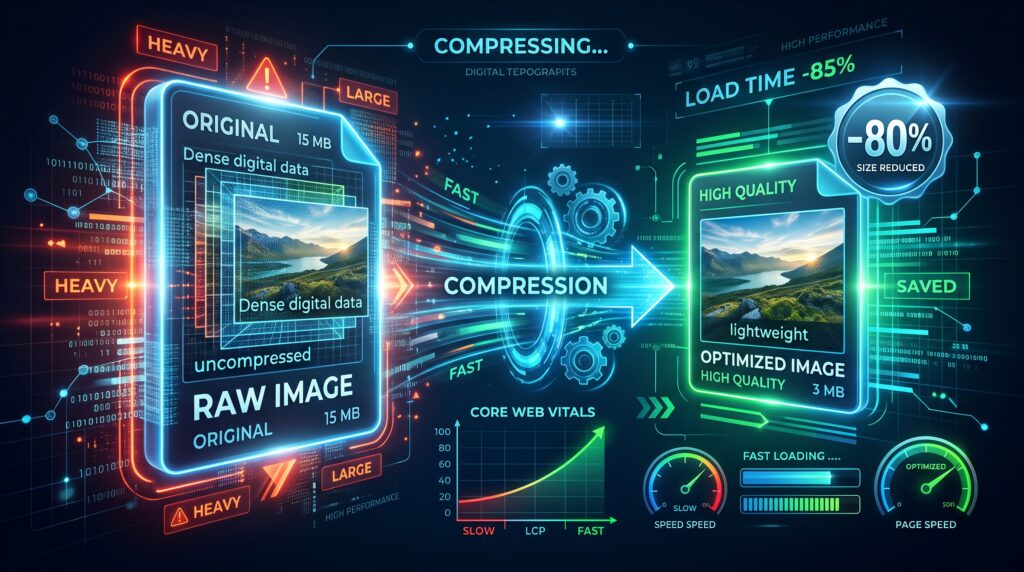
When visitors land on your website, every kilobyte counts. High-resolution photos, infographics, and banners account for well over 60% of an average webpage’s total payload. If your media files are heavy, pages load sluggishly, mobile bounce rates spike, and Google’s Core Web Vitals algorithms penalize your organic search rankings.
Yet, aggressive compression often leads to pixelated edges, blurry text, and washed-out color gradients that make a website look unprofessional.
How do you shrink raw image files by 60% to 85% without sacrificing crisp visual fidelity? This guide breaks down modern lossy vs. lossless dynamics, provides an in-browser compression tool blueprint, covers Core Web Vitals optimization (LCP, CLS, INP), and addresses real-world questions.
1. Explain the Problem: The Bandwidth vs. Visual Quality Dilemma
Images are the primary culprit behind poor website performance:
- The Largest Contentful Paint (LCP) Bottleneck: Google requires a page’s largest visual element—typically a hero banner or featured article photo—to load within 2.5 seconds. Serving an uncompressed 2.5 MB JPEG can delay LCP past 4 seconds, severely hurting search rankings.
- Bloated Raw Metadata: Cameras and smartphones embed hidden EXIF data, GPS coordinates, thumbnail previews, and color profile tags into every photo. This hidden metadata can add 20 KB to 150 KB per file—bytes that serve no purpose on a public website.
- The “Compression Artifacts” Dilemma: Pushing standard JPEG compression down below 60% introduces blocky Discrete Cosine Transform (DCT) squares, ringing halos around text, and blotchy gradient banding in skies and shadows.
- Format Inertia: Many platforms still serve 3 MB PNG-24 graphics for flat web illustrations or standard photos, when a properly encoded modern format could achieve identical visual quality at under 150 KB.
2. Demonstrate the Solution: Client-Side Browser Compression Tool
Instead of relying on third-party cloud tools that compromise file privacy and queue uploads, you can compress, strip metadata, and resize images locally in any web browser using the HTML5 Canvas API and WebAssembly.
Standalone HTML/JS Browser Compression Utility
Save the following code as compressor.html on your desktop or embed it into your CMS utility page:
HTML
<!DOCTYPE html>
<html lang="en">
<head>
  <meta charset="UTF-8">
  <title>Browser-Side Smart Image Compressor</title>
  <style>
    body { font-family: system-ui, -apple-system, sans-serif; max-width: 650px; margin: 40px auto; padding: 20px; color: #1e293b; line-height: 1.5; }
    .dropzone { border: 2px dashed #2563eb; padding: 35px 20px; text-align: center; border-radius: 10px; background: #eff6ff; cursor: pointer; }
    .controls { margin-top: 20px; display: grid; gap: 15px; }
    .slider-row { display: flex; justify-content: space-between; align-items: center; }
    button { background: #2563eb; color: #fff; border: none; padding: 12px 20px; border-radius: 6px; font-weight: 600; cursor: pointer; width: 100%; font-size: 16px; }
    button:disabled { background: #94a3b8; cursor: not-allowed; }
    .stats { margin-top: 20px; padding: 15px; background: #f8fafc; border: 1px solid #e2e8f0; border-radius: 8px; font-size: 14px; }
  </style>
</head>
<body>
  <h2>Local Image Compression Tool</h2>
  <p>Compress WebP, JPEG, and PNG images directly in your browser with zero server uploads.</p>

  <div class="dropzone" id="dropzone">Click or Drop Image Here (.jpg, .png, .webp)</div>
  <input type="file" id="fileInput" accept="image/*" style="display: none;">

  <div class="controls">
    <div class="slider-row">
      <label for="qualitySlider">Compression Quality: <strong id="qualityVal">82%</strong></label>
      <input type="range" id="qualitySlider" min="20" max="100" value="82">
    </div>
    <div class="slider-row">
      <label for="maxWidth">Max Width Limit (px):</label>
      <input type="number" id="maxWidth" value="1920" style="width: 90px; padding: 6px; border: 1px solid #cbd5e1; border-radius: 4px;">
    </div>
    <button id="compressBtn" disabled>Compress & Download Image</button>
  </div>

  <div class="stats" id="statsBox" style="display:none;"></div>

  <script>
    const dropzone = document.getElementById('dropzone');
    const fileInput = document.getElementById('fileInput');
    const qualitySlider = document.getElementById('qualitySlider');
    const qualityVal = document.getElementById('qualityVal');
    const maxWidthInput = document.getElementById('maxWidth');
    const compressBtn = document.getElementById('compressBtn');
    const statsBox = document.getElementById('statsBox');
    let loadedImg = null, originalFile = null;

    dropzone.onclick = () => fileInput.click();
    qualitySlider.oninput = (e) => qualityVal.innerText = `${e.target.value}%`;
    fileInput.onchange = (e) => handleFile(e.target.files[0]);

    function handleFile(file) {
      if (!file) return;
      originalFile = file;
      const reader = new FileReader();
      reader.onload = (e) => {
        const img = new Image();
        img.onload = () => {
          loadedImg = img;
          dropzone.innerHTML = `<strong>Loaded:</strong> ${file.name}<br>Original Dimensions: ${img.width}x${img.height} | Size: ${(file.size / 1024).toFixed(1)} KB`;
          compressBtn.disabled = false;
        };
        img.src = e.target.result;
      };
      reader.readAsDataURL(file);
    }

    compressBtn.onclick = () => {
      if (!loadedImg) return;
      const quality = qualitySlider.value / 100;
      const maxWidth = parseInt(maxWidthInput.value, 10) || loadedImg.naturalWidth;

      // Calculate scaled aspect ratio
      let width = loadedImg.naturalWidth;
      let height = loadedImg.naturalHeight;
      if (width > maxWidth) {
        height = Math.round((height * maxWidth) / width);
        width = maxWidth;
      }

      const canvas = document.createElement('canvas');
      canvas.width = width;
      canvas.height = height;
      const ctx = canvas.getContext('2d');
      ctx.drawImage(loadedImg, 0, 0, width, height);

      // Export as efficient modern WebP
      canvas.toBlob((blob) => {
        const originalKB = (originalFile.size / 1024).toFixed(1);
        const compressedKB = (blob.size / 1024).toFixed(1);
        const savings = (100 - (blob.size / originalFile.size) * 100).toFixed(1);

        statsBox.style.display = 'block';
        statsBox.innerHTML = `
          <strong>Compression Summary:</strong><br>
          • Original: ${originalKB} KB<br>
          • Compressed: ${compressedKB} KB<br>
          • Space Saved: <span style="color:#16a34a; font-weight:bold;">${savings}%</span>
        `;

        const link = document.createElement('a');
        link.download = `optimized-${originalFile.name.replace(/\.[^/.]+$/, "")}.webp`;
        link.href = URL.createObjectURL(blob);
        link.click();
      }, 'image/webp', quality);
    };
  </script>
</body>
</html>
3. Technical Breakdown: Finding the Visual Threshold
Image compression relies on two fundamental paradigms: Lossless and Lossy encoding.
| Feature / Method | Lossless Compression (e.g., PNG, OxiPNG) | Lossy Compression (e.g., MozJPEG, WebP, AVIF) |
| Data Retention | 100% of pixel data preserved bit-for-bit | Discards high-frequency data imperceptible to humans |
| Typical Size Reduction | 10% – 30% (stripping metadata & optimizing tables) | 50% – 85% |
| Target Formats | PNG, SVG, lossless WebP, GIF | WebP, AVIF, JPEG |
| Core Web Vitals Impact | Minimal (often not enough for large photos) | High (drastically accelerates LCP) |
| Best Application | Crisp UI icons, logos, vector screenshots, line art | Photography, full-bleed hero banners, blog graphics |
The Mechanics of “Perceptual Lossy” Encoding
Modern lossy encoders do not compress pixels blindly. They exploit the limits of human optical perception:
- Chroma Subsampling (4:2:0): Human eyes are substantially more sensitive to brightness (luminance) than to fine color nuances (chrominance). Encoders cut color resolution in half while preserving lighting detail, eliminating 30% to 50% of the byte weight before compression begins.
- Frequency Quantization: Algorithms convert spatial pixel blocks into frequency maps. High-frequency variations (tiny background noise) are rounded off, while low-frequency components (facial contours, object shapes) are preserved.
- The “Sweet Spot” Rule: Compressing between 75% and 82% quality produces an imperceptible difference to the naked eye under 100% zoom, yet consistently slashes file weights by more than half.
4. Web Performance & Troubleshooting Guide
Optimizing image delivery involves more than reducing raw file size. Implement the following practices to eliminate common loading issues and pass Core Web Vitals checks:
Fixing Poor LCP (Largest Contentful Paint)
- Never Lazy-Load Your Hero Image: Adding
loading="lazy"to an above-the-fold hero image tells the browser to pause rendering until layout calculations finish, delaying LCP by up to a second. - Preload Critical Assets: Signal high-priority images inside your HTML
<head>:HTML<link rel="preload" fetchpriority="high" as="image" href="/images/hero-banner.webp" type="image/webp"> - Use Modern Responsive Fallbacks: Serve modern next-gen formats with fallbacks for legacy browsers via the native
<picture>element:HTML<picture> <source srcset="image.avif" type="image/avif"> <source srcset="image.webp" type="image/webp"> <img src="image.jpg" alt="Optimized showcase banner" width="1200" height="675" loading="lazy"> </picture>
Preventing CLS (Cumulative Layout Shift)
When an image lacks defined aspect boundaries, surrounding text jumps down once the file finishes downloading. Always declare explicit width and height dimensions or CSS aspect-ratio rules:
HTML
<img src="photo.webp" width="800" height="450" style="aspect-ratio: 16/9; width: 100%; height: auto;" alt="Responsive scenery">
5. Frequently Asked Questions (FAQ)
What is the best image format for websites in 2026?
WebP remains the most practical default format for general website publishing due to its universal cross-browser support (around 97%) and robust 25%–35% size reduction over legacy JPEG. For primary hero images, AVIF delivers even greater compression savings (up to 50% over JPEG), provided an appropriate fallback or high-efficiency decoder is configured.
Does compressing an image degrade print quality?
Yes, if lossy compression is applied aggressively. Print media requires high physical pixel density (minimum 300 DPI) and full uncompressed color depth (CMYK/AdobeRGB). For professional printing, always retain the original, uncompressed RAW or TIFF master file and reserve lossy WebP/JPEG compression strictly for screen displays.
Will resizing dimensions compress an image more than reducing quality?
Resizing pixel dimensions almost always saves more data than quality adjustments. Displaying a 4000-pixel smartphone photo in an 800-pixel blog container forces users to download millions of unused pixels. Scaling that image down to 1200 pixels before compressing delivers an immediate 70%+ file size reduction.