
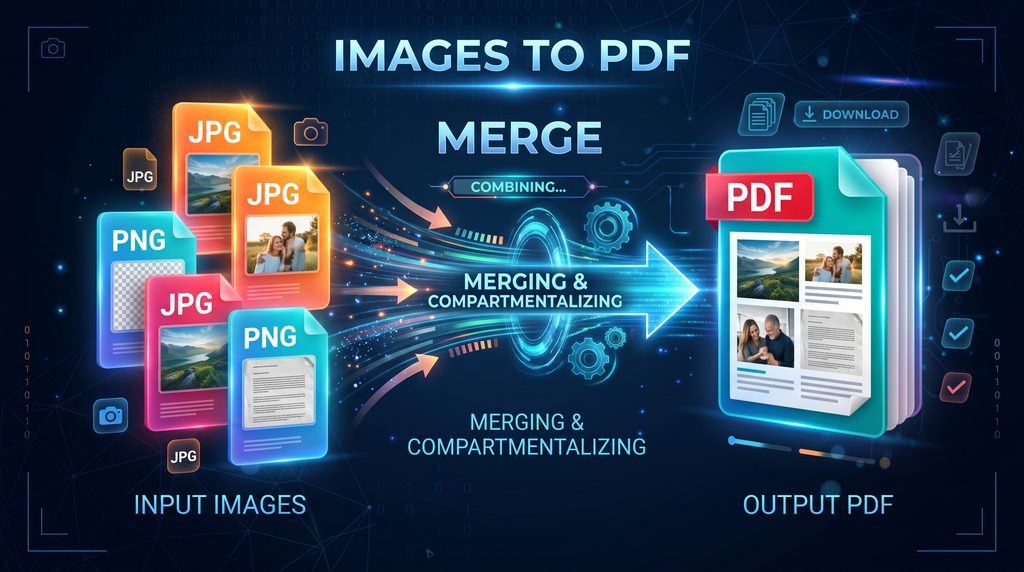
Whether submitting receipts for expense reimbursement, preparing application dossiers, or archiving project sketches, few things are more frustrating than managing dozens of disconnected .jpg and .png files.
Sending multiple standalone images clutters email threads, risks pages arriving out of sequence, and regularly triggers upload rejection errors on portals with single-attachment limits.
Combining disparate image files into a single, structured multi-page PDF solves these issues at once. This practical guide covers why image-to-PDF merging fails, provides an in-browser converter blueprint, explores page-fitting mechanics, outlines troubleshooting steps, and answers common conversion questions.
1. Explain the Problem: Why Merging Images Manually Causes Headaches
Merging a series of loose images into a clean PDF document sounds straightforward, but everyday workflows introduce friction:
- File Upload Limitations: Portals for government forms, universities, and enterprise HR systems frequently allow only a single document per submission field.
- Aspect Ratio Distortions: Simply pasting images into basic word processing software often forces rectangular screenshots onto mismatched portrait page dimensions, clipping margins or introducing awkward white bars.
- File Bloat: Raw smartphone photos range from 3 MB to 12 MB each. Stitching ten uncompressed photos directly into a PDF can produce a 60+ MB document—instantly exceeding standard email attachment limits (usually 20 MB–25 MB).
- Privacy Risks with Online Converters: Many free cloud utilities require uploading private photos, identity cards, or financial receipts to remote servers with ambiguous data-retention policies.
- Page Ordering Chaos: Without visual thumbnail controls, files often merge out of order according to arbitrary camera naming conventions rather than their intended sequence.
2. Demonstrate the Solution: Client-Side Images-to-PDF Browser Tool
Instead of relying on third-party servers to assemble confidential files, you can compile images directly within the browser using the client-side jsPDF library. The entire rendering, scaling, and compression process runs locally in your device’s memory.
Standalone HTML/JS Converter Utility
Save the following code as images-to-pdf.html and open it directly in Chrome, Edge, Safari, or Firefox:
HTML
<!DOCTYPE html>
<html lang="en">
<head>
  <meta charset="UTF-8">
  <title>Private In-Browser Image to PDF Merger</title>
  <!-- Load client-side jsPDF library -->
  <script src="https://cdnjs.cloudflare.com/ajax/libs/jspdf/2.5.1/jspdf.umd.min.js"></script>
  <style>
    body { font-family: system-ui, -apple-system, sans-serif; max-width: 680px; margin: 40px auto; padding: 20px; color: #1e293b; line-height: 1.5; }
    .dropzone { border: 2px dashed #0284c7; padding: 35px 20px; text-align: center; border-radius: 10px; background: #f0f9ff; cursor: pointer; }
    .controls { margin-top: 20px; display: flex; flex-direction: column; gap: 15px; }
    .file-list { margin-top: 15px; padding: 10px 15px; background: #f8fafc; border: 1px solid #e2e8f0; border-radius: 8px; max-height: 180px; overflow-y: auto; font-size: 14px; }
    button { background: #0284c7; color: #fff; border: none; padding: 12px 20px; border-radius: 6px; font-weight: 600; cursor: pointer; font-size: 16px; width: 100%; }
    button:disabled { background: #94a3b8; cursor: not-allowed; }
  </style>
</head>
<body>
  <h2>Local Image to PDF Merger</h2>
  <p>Select multiple images to compile them into a single PDF document entirely on your device.</p>

  <div class="dropzone" id="dropArea">Click or Drag & Drop Multiple Images (.jpg, .png, .webp)</div>
  <input type="file" id="filePicker" multiple accept="image/jpeg,image/png,image/webp" style="display: none;">

  <div class="file-list" id="fileList" style="display: none;"></div>

  <div class="controls">
    <button id="generatePdfBtn" disabled>Compile into PDF</button>
  </div>

  <script>
    const { jsPDF } = window.jspdf;
    const dropArea = document.getElementById('dropArea');
    const filePicker = document.getElementById('filePicker');
    const fileList = document.getElementById('fileList');
    const generatePdfBtn = document.getElementById('generatePdfBtn');
    let selectedFiles = [];

    dropArea.onclick = () => filePicker.click();
    filePicker.onchange = (e) => {
      selectedFiles = Array.from(e.target.files);
      if (selectedFiles.length > 0) {
        fileList.style.display = 'block';
        fileList.innerHTML = `<strong>Selected (${selectedFiles.length} files):</strong><br>` +
          selectedFiles.map((f, i) => `${i + 1}. ${f.name} (${(f.size / 1024).toFixed(1)} KB)`).join('<br>');
        generatePdfBtn.disabled = false;
      }
    };

    generatePdfBtn.onclick = async () => {
      if (selectedFiles.length === 0) return;
      generatePdfBtn.disabled = true;
      generatePdfBtn.innerText = "Building PDF locally...";

      // Standard A4 dimensions in points: 595.28 x 841.89
      const pdf = new jsPDF('p', 'pt', 'a4');
      const pageWidth = pdf.internal.pageSize.getWidth();
      const pageHeight = pdf.internal.pageSize.getHeight();

      for (let i = 0; i < selectedFiles.length; i++) {
        if (i > 0) pdf.addPage('a4', 'p');

        const dataUrl = await readFileAsDataURL(selectedFiles[i]);
        const imgProps = await getImageProperties(dataUrl);

        // Calculate aspect-ratio fit within A4 margins (20pt padding)
        const margin = 20;
        const usableWidth = pageWidth - margin * 2;
        const usableHeight = pageHeight - margin * 2;

        const scale = Math.min(usableWidth / imgProps.width, usableHeight / imgProps.height);
        const renderWidth = imgProps.width * scale;
        const renderHeight = imgProps.height * scale;

        // Center on the page
        const xOffset = (pageWidth - renderWidth) / 2;
        const yOffset = (pageHeight - renderHeight) / 2;

        pdf.addImage(dataUrl, 'JPEG', xOffset, yOffset, renderWidth, renderHeight, undefined, 'FAST');
      }

      pdf.save('merged-document.pdf');
      generatePdfBtn.innerText = "Compile into PDF";
      generatePdfBtn.disabled = false;
    };

    function readFileAsDataURL(file) {
      return new Promise((resolve) => {
        const reader = new FileReader();
        reader.onload = (e) => resolve(e.target.result);
        reader.readAsDataURL(file);
      });
    }

    function getImageProperties(src) {
      return new Promise((resolve) => {
        const img = new Image();
        img.onload = () => resolve({ width: img.naturalWidth, height: img.naturalHeight });
        img.src = src;
      });
    }
  </script>
</body>
</html>
3. Technical Breakdown: How PDF Compilers Handle Raster Images
Understanding how a PDF reader renders raster pixels helps prevent oversized documents and pixelated pages:
| Technical Attribute | Loose Raw Images (.jpg, .png) | Compiled Multi-Page PDF (.pdf) |
| Data Architecture | Single raster image stream | Object-oriented container with cross-reference tables |
| Page Definitions | Rigid pixel dimensions (e.g., 4032×3024) | Point-based vector canvas (e.g., 72 points per inch) |
| Orientation Handling | Read from EXIF flags (often ignored) | Embedded strictly per-page coordinate matrix |
| File Compression | Independent JPEG DCT / PNG Deflate | Shared object streams with Deflate filter dictionaries |
| Resolution Target | Variable camera capture density | Scalable display output (72–150 DPI web / 300 DPI print) |
Page-Fitting Algorithms
When placing a high-resolution photo onto a standard page container (like US Letter or A4), the compiler applies an aspect-ratio scaling equation:
$$\text{Scale Factor} = \min\left(\frac{W_{\text{page}} – 2 \cdot M}{W_{\text{image}}}, \; \frac{H_{\text{page}} – 2 \cdot M}{H_{\text{image}}}\right)$$
- Where $W_{\text{page}}$ and $H_{\text{page}}$ represent the page dimensions in points, and $M$ represents boundary padding.
- Using this uniform factor ensures that neither vertical nor horizontal axes are stretched out of proportion, preventing distorted text or skewed faces.
4. Web Performance & Troubleshooting Guide
Common issues can arise when merging multiple high-resolution images. Here is how to resolve them:
A. The Resulting PDF Is Too Large to Email (>25 MB)
- Cause: Embedding raw 12-megapixel phone images without pre-scaling preserves redundant high-frequency detail.
- Fix: Downsample image dimensions to a maximum width of 1600–2000 pixels before merging, or apply a lossy JPEG compression factor between 75% and 82%. This reduces overall PDF size by up to 80% while retaining clean legibility for printed text.
B. Rotated or Upside-Down Pages
- Cause: Modern phones store orientation as an EXIF metadata tag instead of physically rotating the pixel grid. Some PDF libraries read raw pixel streams without parsing EXIF orientation tags.
- Fix: Pass images through an HTML5
<canvas>element (as shown in our tool above), which normalizes orientation before embedding the data into the PDF stream.
C. Blurry Text on Document Scans
- Cause: Downscaling document images below 150 DPI can soften high-contrast text lines.
- Fix: When digitizing printed text or contracts, preserve at least 200–300 DPI for black-and-white documents, and opt for high-contrast grayscale rather than heavy color compression.
5. Frequently Asked Questions (FAQ)
Can I mix PNG and JPG images in the same PDF?
Yes. Modern PDF specifications support mixed image types within the same document stream. You can place a high-contrast transparent PNG logo on page one and standard lossy JPEG photos on subsequent pages without incompatibility.
How can I reorder pages after compiling a PDF?
To rearrange page order without starting over, open the generated file in a desktop viewer like Apple Preview (macOS) or use native PDF tools on Windows. Simply drag and drop the page thumbnails in the sidebar into your desired sequence and resave the file.
Does combining images into a PDF reduce their resolution?
Not by default. A PDF acts as a container; if you embed images at their native resolutions without applying downsampling filters, every original pixel is retained. However, applying compression parameters (e.g., standard web optimization) can help keep file sizes lightweight and portable.